Using Arcus
Cases: your assigned tickets
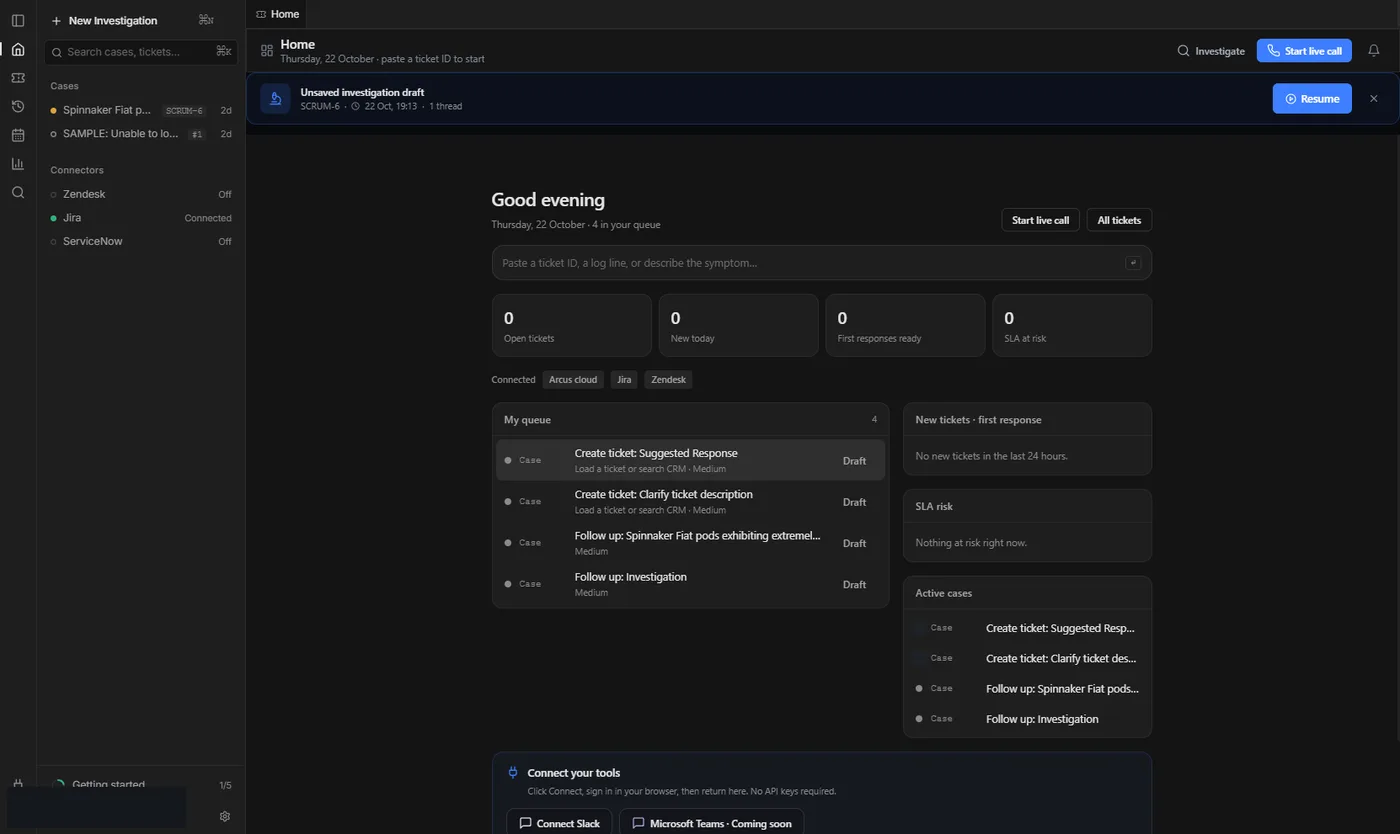
The Cases sidebar lists tickets assigned to you across connected helpdesks, with refresh and ticket cards.
5 min read
Open Cases
- In the left sidebar choose Cases (or Tickets, depending on your build label).
- Connector chips at the top show Zendesk, Jira, ServiceNow and others as Connected or off.
- Click a row to open the ticket card and start or continue an investigation.
Refresh
- Click Refresh next to Cases after you assign a ticket to yourself in the helpdesk.
- The list also refreshes about every minute and when you return to Arcus.
- If the list is empty, confirm the ticket is assigned to the same agent identity you signed in with.
Ticket card
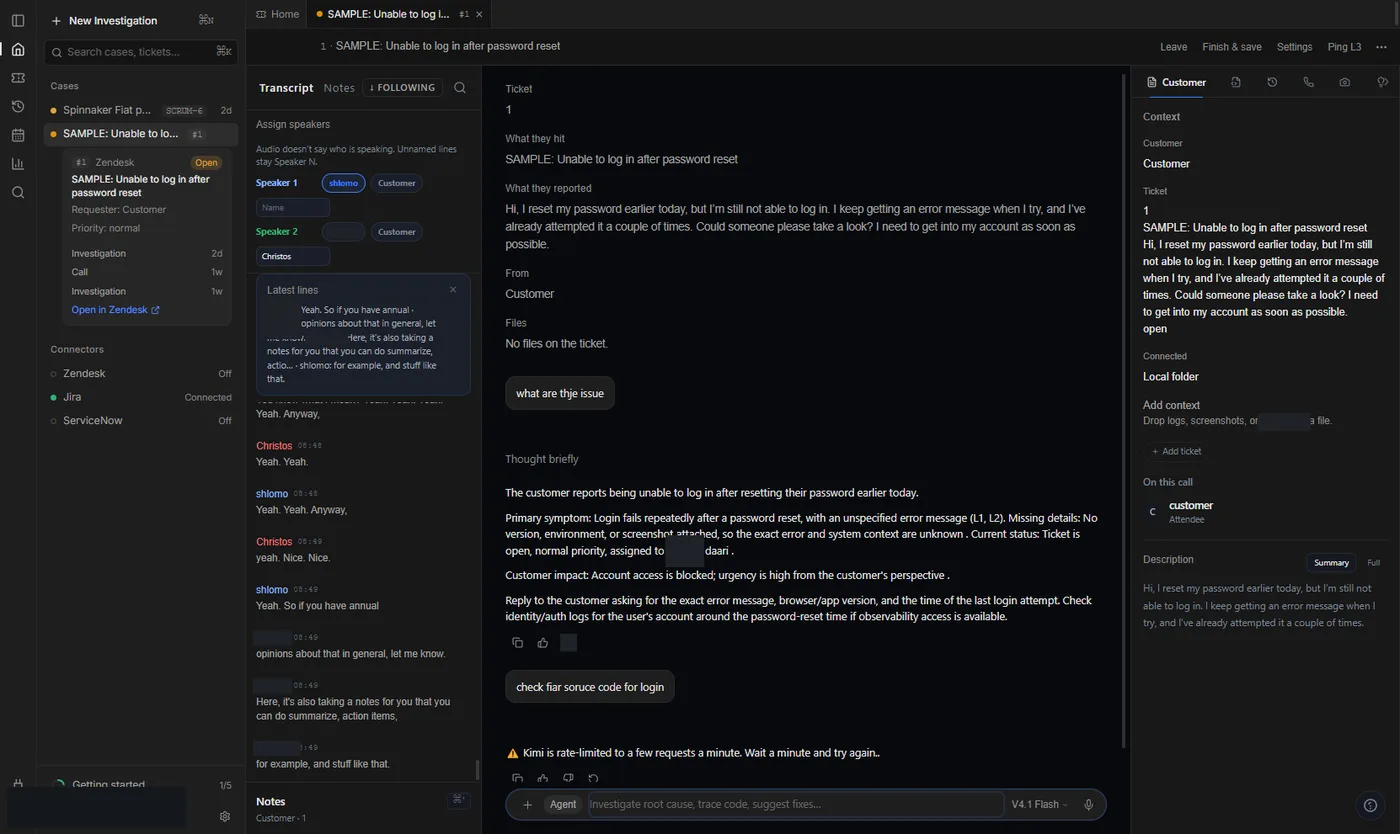
The card shows subject, requester, priority, status and Open in helpdesk. From here you can investigate, draft a first response or jump to Insights for the account.
Next
How investigations work
What Arcus reads, how it reaches a root cause, and how to check its work.
Customer reply and verifier
Draft a reply, run the reply check (verifier), and only then post when external posts are on.
Zendesk: connect step by step
Create the Zendesk OAuth client (or API token), paste it into Arcus, sign in, and see your Cases queue.