Using Arcus
Live call
Transcribe the customer call you are already on and investigate while you talk.
5 min read
Start a call
- Join your Zoom, Meet or Teams call as usual.
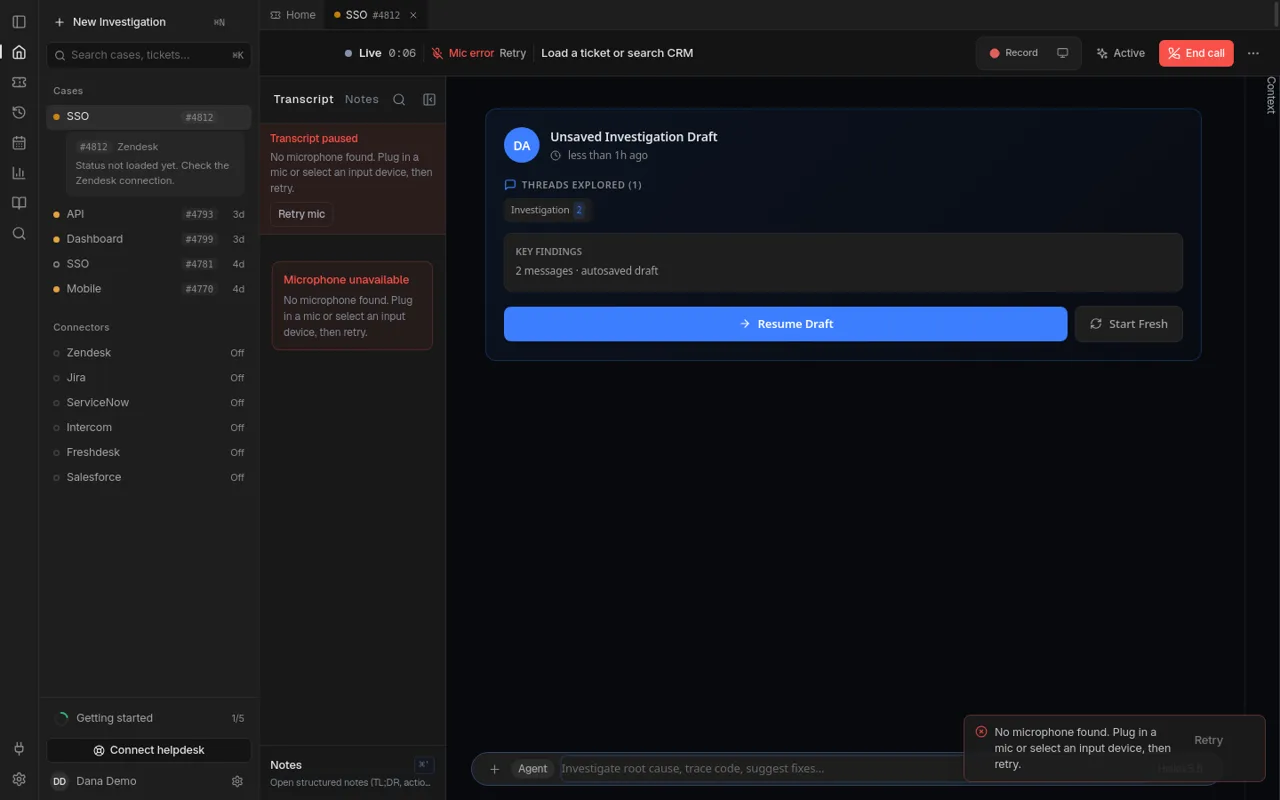
- In Arcus, click Start live call (top right on Home, or inside a case). Allow the microphone the first time.
- Load the ticket or search the CRM from the bar at the top so the call is tied to the right case.
- Watch the transcript on the left. Ask questions in the box at the bottom while the call runs; the transcript and your notes can go with the question.
- Click End call, then End and summarize to get the summary, key moments and action items in the case.
Good to know
- Transcription runs on Arcus servers after you sign in. You do not need a transcription or AI key on your computer.
- Audio is streamed for transcription and is not kept on your computer.
- Record and screen stills are optional. A still stays on your computer until you send it with a question.
- On Mac, also allow Screen Recording if you want stills from the meeting.
No microphone found
If the transcript says “Transcript paused · No microphone found”, plug in or select an input device in your system settings, then click Retry mic.